How to use bank statement converter com to convert PDF files to CSV or Excel
Use bank statement converter com to turn PDFs into reviewable CSV or Excel transaction data.
Key Takeaways
Converting a bank statement is most useful when the resulting rows are reviewed and fitted into a wider finance workflow.
- Download the original statement directly from your bank.
- Check whether the PDF contains selectable text or scanned images.
- Choose CSV for simple imports and Excel for review and editing.
- Verify dates, descriptions, debits, credits, balances, and duplicates.
- Keep the original statement as the reference for reconciliation.
What bank statement converter com does
A bank statement PDF is designed for reading, not always for sorting or analysis. A converter extracts transaction data into structured rows so finance teams can review, reconcile, report, and import it more easily. The phrase bank statement converter com is often used when people are looking for a practical way to turn static statements into usable spreadsheet data. The result still needs human review, especially when the source has unusual formatting.
Supported statement formats and file types
The most common source is a PDF downloaded from online banking. Digital PDFs usually contain a text layer and table structure, while scanned PDFs are made from page images and require optical character recognition, or OCR. Some workflows may also begin with image files, but you should confirm the converter’s accepted file types before uploading.
The bank statement conversion guide provides a useful overview of extracting transaction data from digital and scanned statements. In either case, the bank, account type, page layout, and statement period can affect the quality of the extracted rows.
PDF-to-CSV and PDF-to-Excel conversion
CSV is a plain, portable format that works well for imports and simple transaction analysis. Excel is more convenient when you need to inspect columns, apply filters, add working notes, or prepare a review file. The choice is less about which format is universally better and more about where the data goes next.
A converter can produce structured fields such as dates, descriptions, debits, credits, and balances, but the output should not be treated as automatically verified. A careful review step protects the workflow from small extraction errors that can affect totals later.
When conversion is useful for budgeting and bookkeeping
Converted rows make it easier to sort spending, compare months, prepare working papers, and organize information for reconciliation. Bookkeepers can reduce repetitive copy-paste work, while analysts can move transaction data into spreadsheets or other reporting tools. It can also help when several statement periods need to be reviewed consistently.
For a practical view of the process, this PDF conversion workflow covers the basic sequence of uploading a statement, selecting CSV or Excel, and downloading the result. The conversion saves time, but categorization and financial interpretation remain part of the reviewer’s job.
How to prepare a bank statement for conversion
Good preparation starts before the file reaches a converter. Download a complete statement, retain the original filename and period, and avoid editing the source PDF first. These simple steps make it easier to compare the converted rows with the document later. They also help separate a source-file problem from an extraction problem.

Downloading the original statement from your bank
Sign in through the bank’s normal website or app and select the exact account and statement period you need. Download the original PDF rather than a screenshot or printout, and keep the file in a controlled folder. If the statement is password-protected, record the password securely and check whether the conversion process accepts protected files.
Use one file per statement period when possible. That makes missing pages, repeated transactions, and opening or closing balances easier to identify during review.
Checking whether the PDF contains selectable text
Open the PDF and try to select a transaction description with your cursor. If you can copy a few words and paste them into a text editor, the file probably contains selectable text and can usually be parsed more directly. If selection captures nothing or produces unreadable characters, the document may be image-based.
Also inspect several pages rather than testing only the first one. A statement can contain a digital cover page and scanned transaction pages, or a layout that changes partway through the period.
Handling scanned statements and image-based files
Scanned statements need OCR to read characters from page images. OCR can identify dates, descriptions, amounts, and other visible fields, but its results depend on scan quality, contrast, skew, handwriting, and the bank’s layout. A clear, high-resolution scan generally gives the process more useful information.
Before conversion, straighten pages if necessary and make sure every page is present. Afterward, pay particular attention to decimal points, minus signs, and characters that resemble one another, such as zero and the letter O.
How to convert a bank statement step by step
The basic workflow is deliberately simple: upload, process, review, and download. Bank statement converter com can be used as a search phrase for this type of workflow, but the practical outcome depends on the statement and the checks performed afterward. Work from a copy if the source file must be retained for records. Never discard the original after receiving an output file.
Uploading the statement securely
Open the conversion page only when you are ready to process the file, and select the statement from a private device or approved work location. Confirm that the selected file is the intended account and period before submitting it. If your organization has rules for financial documents, follow those rules before using an online service.
The upload should be treated as a controlled handoff, not as a casual file transfer. Read the service’s privacy information and avoid uploading documents that you are not authorized to handle.
Selecting CSV or Excel as the output format
Choose CSV when the next step is a system import or a simple data operation. Choose Excel when you expect to inspect, filter, annotate, or rearrange the extracted rows before using them elsewhere. If JSON is available and your workflow uses scripts or integrations, it may be suitable, but CSV and Excel remain common choices for manual review.
The output format does not correct a poorly read source. Select the format that fits the next task, then inspect the fields and totals rather than assuming that a familiar file extension means the data is ready.
Reviewing and downloading the converted file
Wait for processing to finish, then open the result before moving it into a bookkeeping or reporting workflow. Check the number of rows, the statement period, and the first and last transactions. Compare running or closing balances where they are present.
A short review checklist keeps the handoff consistent:
- Confirm that every statement page contributed rows.
- Check that dates use the intended order and format.
- Compare debit, credit, and balance totals with the source.
- Look for blank descriptions, merged cells, and duplicate lines.
After these checks, download the file to a controlled location and name it with the account, period, and format. That naming habit helps prevent an unreviewed export from being mistaken for a final working file.
How to improve conversion accuracy
Extraction quality depends on the source document and its layout. Digital text is generally easier to parse than a low-quality scan, but even a digital PDF can place descriptions, amounts, and balances in unexpected columns. Treat the first output as a working dataset. A repeatable review process is more dependable than assuming every statement will behave the same way.
Verifying dates, descriptions, and transaction amounts
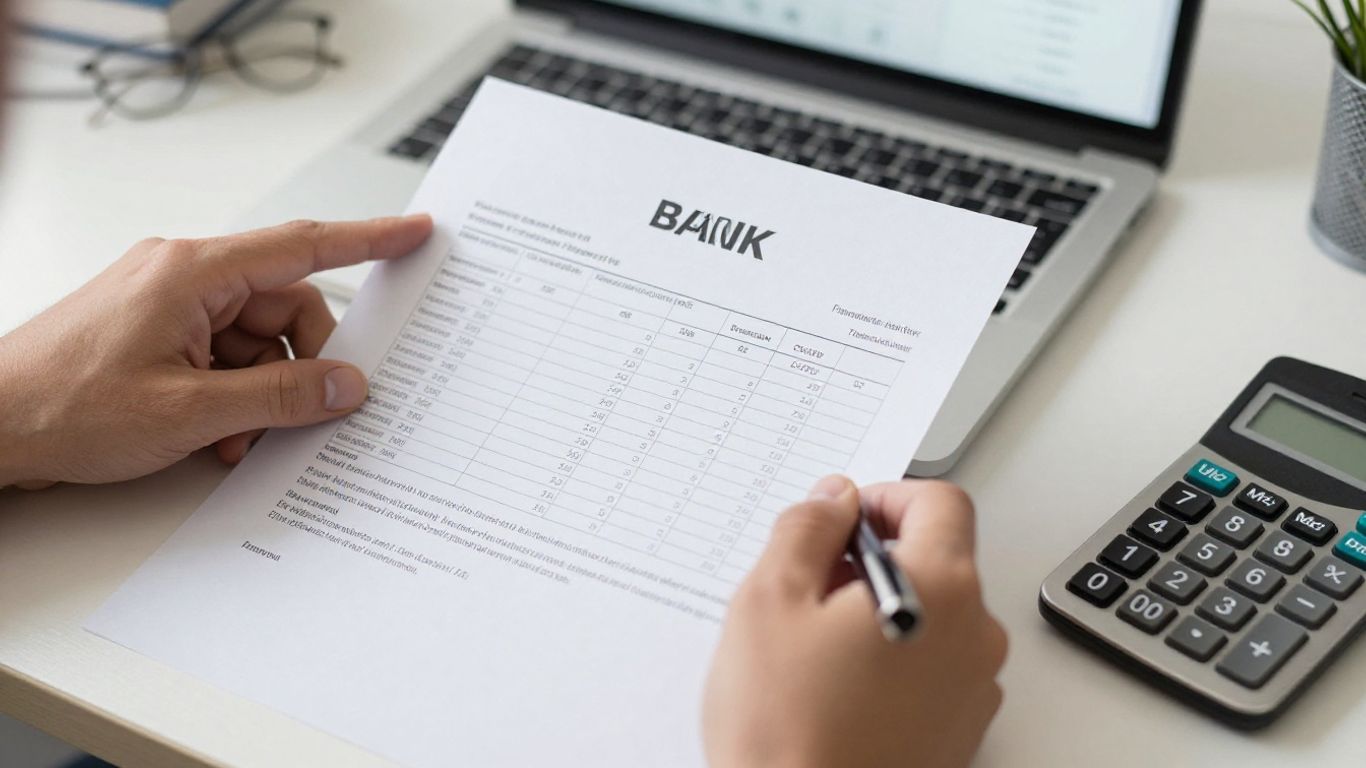
Start with the statement’s beginning and ending rows, then sample transactions from each page. Check that dates were not shifted, descriptions were not joined to neighboring rows, and amounts retain their decimal positions. Compare a few transactions with the original at random rather than checking only the largest entries.
For higher-stakes work, compare the extracted row count and period totals with the statement. These checks can reveal a missing page or a malformed table even when individual rows look plausible.
Correcting columns, currency symbols, and negative values
A converted file may place withdrawals and deposits in separate columns, combine them into one amount column, or retain currency symbols as text. Review the column headers and decide how the receiving spreadsheet or accounting system expects the fields to appear. Do not remove minus signs or currency markers until you understand whether they carry meaning.
A small comparison table can clarify what to inspect before import:
| Field | What to verify | Common concern |
|---|---|---|
| Date | Period and date order | Month and day reversed |
| Description | Complete transaction wording | Text merged across rows |
| Amount | Decimal and sign | Debit treated as positive |
| Balance | Sequence and ending value | Missing or shifted balance |
Once the columns are consistent, save a reviewed copy separately from the raw export. That preserves an audit trail and makes later corrections easier to explain.
Using OCR for scanned or poorly formatted statements
OCR is the appropriate route when the PDF contains page images rather than selectable text. It reads the visible characters and attempts to place them into structured fields, but it can misread faint digits, compressed scans, and unusual fonts. Review transactions with large values, unclear characters, or unexpected signs first.
If OCR repeatedly produces poor rows, improve the source scan or try a different conversion method rather than repeatedly editing the same output. The goal is a traceable dataset, not a file that merely looks tidy.
Security and privacy considerations
Bank statements contain account details, names, addresses, and transaction history. Converting them is therefore a data-handling decision as well as a formatting task. Use only services approved for your situation and understand what happens to uploaded files. Privacy-first processing reduces exposure, but it does not remove the need for sensible controls.
Protecting account numbers and personal information
Share only the pages and fields needed for the task when policy allows, while retaining a complete original for authorized records. Do not post statements in public support forums or send them through unprotected channels. Store both source and output files with access controls appropriate to their sensitivity.
When sending a file to a colleague, confirm the recipient and consider whether account numbers can be masked in a separate review copy. Keep the unmasked version restricted.
Checking file retention and deletion policies
Read the service’s current policy for retention, deletion, processing, and access before uploading financial documents. A statement should not remain available longer than the workflow requires. If the policy is unclear, ask the provider or use an approved local process.
Keep internal records of where the file was processed when your organization requires that information. This is especially helpful for recurring month-end work and audit questions.
Avoiding unsafe uploads on shared devices or networks
Do not upload sensitive statements from a public computer or an unknown network. Shared browsers may retain downloads, cached pages, or login sessions, and a careless download folder can expose the converted file to the next user. Use a managed device and a trusted connection whenever possible.
Sign out when finished, remove temporary downloads according to policy, and check that the output was saved only to the intended location. These ordinary habits matter as much as the conversion step itself.
How to use converted data effectively
A spreadsheet is a starting point, not a finished set of books. Once the rows are extracted, organize them around the purpose of the work: budgeting, bookkeeping, reconciliation, reporting, or analysis. Preserve the original statement and record any transformations made to the output. That separation keeps judgment and review visible.
Importing transactions into spreadsheets and accounting software
Open the CSV or Excel file first to confirm delimiters, headers, date formats, and numeric values. Map each field to the receiving system’s requirements, and test with a small set of rows if the import is unfamiliar. A successful upload should still be checked for rejected, shifted, or duplicated transactions.
For spreadsheet work, filters and frozen headers make review easier. For accounting workflows, use the system’s import preview where available and keep the source statement alongside the imported batch.
Categorizing income, expenses, and transfers
Categorization should follow the organization’s chart of accounts or personal budgeting rules, not the converter’s assumptions. Separate transfers from income and expenses so that moving money between accounts does not inflate activity. Add notes for uncertain descriptions instead of forcing a category prematurely.
Review recurring merchants and unusual amounts together. Patterns can help with classification, but they do not replace the reviewer’s understanding of the transaction.
Reconciling converted transactions with the original statement
Reconciliation compares the extracted rows with the bank’s source record and the ledger or accounting system. Match dates and amounts, investigate gaps, and confirm that opening and closing balances make sense. Keep a note of corrections so another person can follow the work.
A converted file is valuable because it makes matching faster, but reconciliation remains a separate control. The original PDF is the reference when the extracted data and the ledger disagree.
Common conversion problems and solutions
Most conversion problems are visible once the output is compared with the source. They often come from changing layouts, image quality, page breaks, or ambiguous table boundaries. Resist the temptation to repair everything manually without recording what changed. A clear diagnosis usually leads to a cleaner second attempt.
Fixing missing rows or incorrectly merged columns
If rows are missing, compare the output with each page of the statement and check whether a page was skipped during upload. Merged columns often occur when descriptions wrap across lines or when debit and credit fields sit close together. Inspect the raw PDF at the point where the first error appears.
You may be able to correct a column mapping or prepare a clearer source file. If the same page continues to fail, isolate it for separate testing rather than silently accepting incomplete data.
Resolving duplicate transactions and formatting errors
Duplicates can arise from repeated uploads, overlapping statement periods, or a parser treating a wrapped line as a second transaction. Compare transaction date, description, amount, and balance before deleting anything. Formatting errors may include inconsistent dates, numbers stored as text, or currency symbols embedded in values.
Keep a copy of the unedited export and document any removed or changed rows. That makes it possible to distinguish a real duplicate from a legitimate pair of similar transactions.
Choosing an alternative conversion method when files fail
A failed conversion does not always mean the statement is unusable. First try the original download, a clearer scan, or a file with unnecessary pages removed where permitted. If the layout remains incompatible, a controlled manual extraction or an approved OCR workflow may be more suitable.
The bank statement FAQ is a useful place to review general questions about scanned documents, protected files, output formats, and conversion workflows. Whatever method you choose, preserve the source and validate the final rows before they enter a financial process.
Conclusion
Converting a PDF bank statement to CSV or Excel can remove repetitive retyping and make transaction data easier to review, but the dependable workflow is upload, process, review, and reconcile. Start with the original statement, choose the output format for the next task, inspect the extracted fields, and protect both source and converted files throughout the process.
Frequently Asked Questions
What is a bank statement converter?
It is a tool or workflow that extracts transaction information from a bank statement, usually a PDF, and places it into a structured format such as CSV or Excel.
Is CSV or Excel better for bank transactions?
CSV is often convenient for imports, while Excel is easier for visual review, filtering, notes, and adjustments. Choose based on the system or task that follows conversion.
Can scanned bank statements be converted?
Yes, scanned statements can be processed with OCR, though results depend on image quality and layout. Always verify digits, signs, dates, and amounts afterward.
How can I check whether a conversion is accurate?
Compare row counts, statement dates, sample transactions, and beginning or ending balances with the original PDF. Investigate missing rows and unusual values before using the file.
Why are columns sometimes merged in the output?
PDF tables may not contain clear structural boundaries, and wrapped descriptions or adjacent amount fields can confuse extraction. Reviewing the source layout can help identify the appropriate correction.
Should I keep the original bank statement?
Yes. Retain the original according to your personal or organizational recordkeeping policy. It provides the reference needed to investigate extraction and reconciliation differences.
Is it safe to upload a bank statement online?
Online processing should be evaluated through the service’s privacy, retention, deletion, and security information. Use approved services, trusted devices, and controlled networks, and avoid uploading files you are not authorized to handle.