Bank statement to Excel converter free: How to convert PDF statements safely
Use a bank statement to excel converter free to convert PDFs safely and verify spreadsheet data.
Key Takeaways
A bank statement can be easier to review and reconcile once its transaction table is in a structured spreadsheet. The safest workflow keeps the original PDF, checks whether OCR is needed, and verifies every important total after conversion.
- Identify whether the statement contains selectable text or scanned page images.
- Choose XLSX for review and editing, or CSV for simple imports.
- Check privacy, retention, file-size, and conversion limits before uploading.
- Compare extracted rows and balances with the original statement.
- Keep a clean, documented spreadsheet for reconciliation and reporting.
Understand how bank statement conversion works
A PDF is designed to preserve how a document looks, not necessarily how its data is organized. A converter must therefore identify transaction rows, columns, dates, descriptions, amounts, and balances before creating a usable spreadsheet. The method depends largely on whether the PDF contains actual text or only page images. Understanding that difference helps set realistic expectations and makes review more focused.
Supported file formats and statement types
Most bank statement conversion workflows begin with a PDF downloaded from online banking. The document may be a checking, savings, credit card, loan, or business statement, and layouts vary by institution and account type. Some PDFs contain selectable text, while others are scans embedded as images. A practical converter should distinguish those cases rather than treating every page as the same kind of input.
The source statement may also include several account sections, a summary page, transaction pages, and notes about fees or interest. Before processing, check which pages contain the transaction table and whether multiple accounts appear in one file. This is especially useful when preparing a month-end close or assembling working papers for several accounts.
For a broader explanation of PDF types, OCR, and reconciliation checks, see this bank statement conversion guide. It is useful background when you are deciding whether a simple text extraction or a more involved OCR workflow is appropriate.
How PDF tables are extracted into spreadsheets
For a text-based PDF, extraction software reads the characters and uses their position on the page to infer rows and columns. It may recognize a date at the left, a description in the middle, and debit, credit, or balance values toward the right. The resulting spreadsheet is only useful if those relationships remain intact. A value that is shifted into the wrong column can be more troublesome than a visibly missing value.
A structured bank statement converter can extract transaction data into rows with fields such as dates, descriptions, debits, credits, and balances. That structure supports sorting, filtering, reconciliation, reporting, and later import into another financial workflow. Still, unusual layouts, wrapped descriptions, footers, and repeated headers can affect the result, so the original PDF remains the reference document.
Why scanned statements require OCR
A scanned statement is essentially a collection of pictures. Selecting text with a cursor may not work, because there are no underlying characters for a normal parser to read. Optical character recognition, or OCR, examines the page image and estimates the letters and numbers shown there. It can make a scanned statement searchable and convertible, but it also introduces a separate source of possible errors.
OCR quality depends on resolution, contrast, skew, shadows, handwriting, and the bank’s typeface. Characters such as 0, O, 1, and l can be confused, while commas and decimal points may disappear or move. A careful workflow treats OCR output as extracted data that needs review, not as a substitute for checking the source.
Common output formats, including XLSX and CSV
XLSX is generally the convenient choice when you need to review rows, add categories, create formulas, or build a pivot table. CSV is a simpler plain-text format that works well for imports and lightweight processing, although it does not preserve workbook formatting or multiple sheets. JSON can be useful when structured transaction data needs to move into a script, system, or integration.
The right output depends on what happens after conversion. A bookkeeper may want XLSX for review before reconciliation, while an analyst may choose CSV for a repeatable data pipeline. A converter that exports Excel, CSV, and JSON gives teams more than one way to move the same reviewed transaction data into their workflow.
Choose the right free converter
A free converter can be suitable for occasional statements, but “free” does not describe the whole decision. You also need to consider where processing occurs, how long files are retained, how well the tool handles your statement layout, and what restrictions apply. A short test with a representative statement is usually more informative than a feature list. Treat the first conversion as a controlled trial, not as a completed accounting task.
Browser-based tools versus desktop software
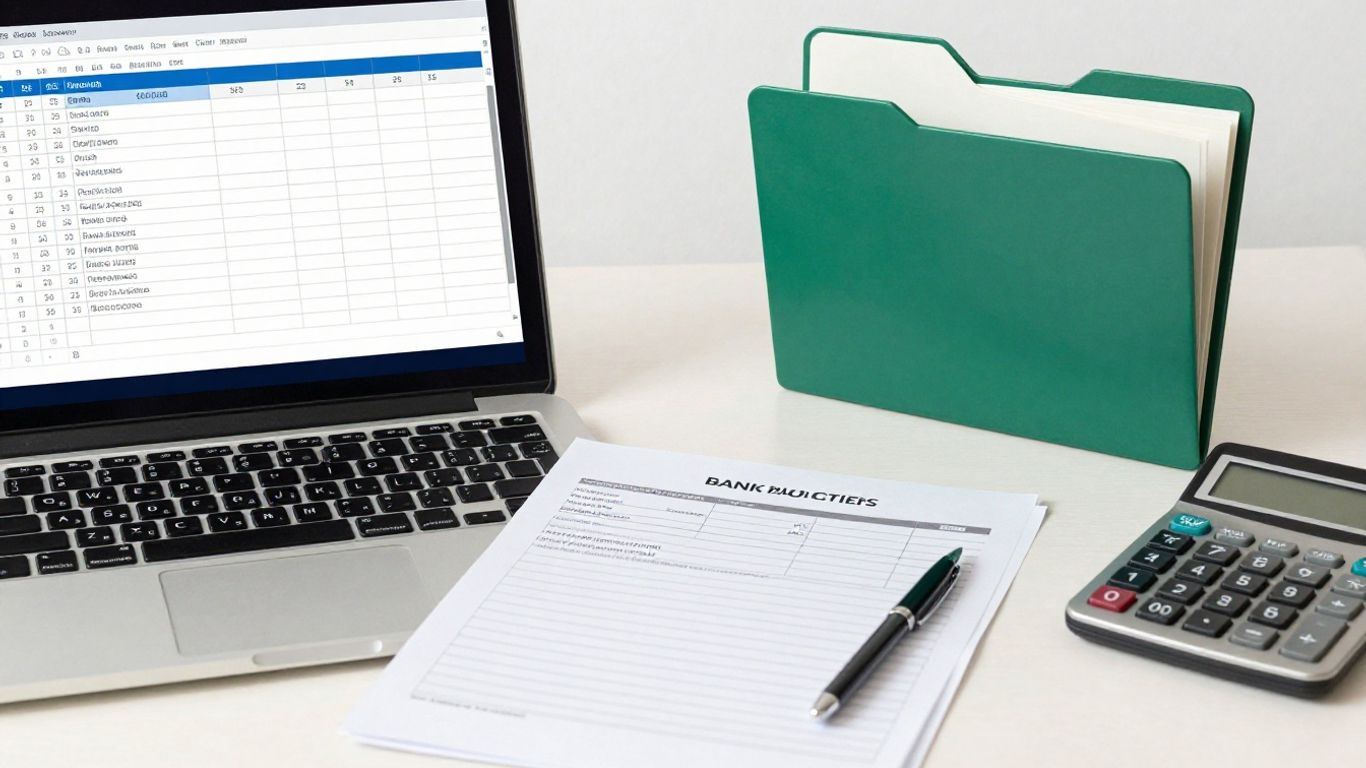
Browser-based tools are convenient when you need to convert a few files without installing software. They can fit a workflow where an accountant receives a statement, uploads it, reviews the result, and downloads a spreadsheet. Desktop software may be preferable when files must stay on a managed computer, when internet access is limited, or when a team has an established document-processing policy.
The practical comparison is not only convenience. Consider whether the tool handles digital and scanned PDFs, whether it preserves transaction columns, and whether it can process the number of pages you normally receive. A converter designed around structured extraction and review may be more useful than one that simply places visible text into cells.
Privacy, encryption, and file-retention policies
Bank statements contain account numbers, addresses, balances, merchant names, and other sensitive information. Before uploading one, read the service’s privacy and retention information. Look for clear language about secure processing, transmission, storage, deletion, and access controls. Avoid assuming that a tool is safe merely because it has a free tier or a familiar interface.
You can also reduce exposure on your side by using the original file from the bank, limiting access to the working folder, and deleting temporary copies when the task is complete. If a statement includes pages that are not needed for conversion, consider whether your organization’s policy permits removing them from a working copy while retaining the untouched original.
Accuracy for dates, descriptions, and transaction amounts
Accuracy is not one number. A converter may capture dates correctly but misread a negative amount, split a merchant description, or shift a balance into a neighboring column. Review should focus on the relationships between fields and on whether every transaction is present. This matters when the spreadsheet will support reconciliation, tax working papers, cash-flow review, or a management report.
A useful test includes a statement with ordinary rows, wrapped descriptions, credits, debits, and at least one page break. Compare the first and last rows, inspect several amounts manually, and look for repeated headers inside the exported table. A PDF converter review can provide additional context on extraction methods and why human review remains part of a reliable workflow.
Limits on file size, pages, and monthly conversions
Free plans commonly impose practical limits, even when the conversion itself is straightforward. Check the maximum upload size, page count, number of files, monthly allowance, and whether scanned PDFs use different limits. Also confirm whether a multi-account statement counts as one file or several processing units.
These limits affect planning for recurring operations. If you convert one month at a time, a small allowance may be enough; a quarterly close or a bookkeeper handling many clients may need a different arrangement. Keep a record of which files were processed and which pages still need attention so that a limit does not quietly create gaps.
Prepare your bank statement for conversion
Preparation takes only a few minutes and can prevent confusing extraction results. Start with the original statement rather than a screenshot or a PDF printed and rescanned from another copy. Confirm the account period, page count, and currency before you upload anything. Good preparation also protects the audit trail: you should be able to return to the untouched source when a spreadsheet row looks questionable.
Download the original PDF from your bank
Sign in through the bank’s normal website or application and download the statement for the exact period you need. Save it with a useful filename that includes the account label and statement date, but avoid putting full account numbers in the filename. Record where the original is stored and restrict that folder to people who need access.
Open the downloaded PDF before conversion. Check that all pages load, the period is correct, and the final page includes any closing balance or continuation information. If you work with several accounts, keep each original clearly separated so that transactions are not accidentally combined.
Check whether the document is text-based or scanned
Try selecting a transaction description or copying a small amount into a plain-text editor. If readable characters appear, the PDF is probably text-based, though its table structure may still be difficult to extract. If selection produces nothing useful, the pages may be scanned and will require OCR. Some statements are mixed: an image-based transaction page may sit beside text-based summary pages.
This quick check helps you choose the right processing path and anticipate review time. Text extraction is often easier to inspect, while OCR requires closer attention to amounts and punctuation. A document’s visual sharpness does not guarantee that its underlying text layer is complete.
Remove passwords and access restrictions safely
Some bank PDFs require a password to open or restrict copying. Do not try to bypass a document protection setting without authorization. If you are permitted to prepare the file, use the bank’s official download options or an approved PDF application to create an accessible working copy, and keep the original protected file unchanged.
Do not send a statement password through an untrusted channel, and do not save it in a filename or spreadsheet note. If your organization has a document-handling policy, follow it before removing any restriction. A failed upload is preferable to weakening controls around financial records.
Protect sensitive account information before uploading
Use only the pages and files needed for the stated task, subject to your organization’s retention and audit requirements. If redaction is allowed, use a true redaction feature rather than drawing a black rectangle over information; visual covering can leave the underlying text recoverable. Never redact transaction amounts or identifiers that the converter needs to match rows accurately.
Before uploading, confirm the destination, connection, and account you are using. After downloading the result, store it in an access-controlled location and avoid emailing an unprotected workbook. These simple habits matter just as much as the conversion setting.
Convert a bank statement to Excel step by step
The conversion itself should be a short, repeatable sequence: upload, process, review, and download. The key is to pause between processing and using the spreadsheet. A file that opens in Excel is not automatically a correct record of the statement. Build a small review checkpoint into every conversion, especially when the data will feed accounting or reporting.
Upload the statement and select the output format
Choose the prepared PDF and upload it through the converter’s file-selection control. Select XLSX when you want an editable workbook, or choose CSV when the next system expects a delimited text file. If the statement is scanned, ensure that OCR processing is enabled or that the tool can identify the need for OCR automatically.
A bank statement converter can process digital or scanned PDF statements through table extraction and OCR, then export structured transaction data in Excel, CSV, or JSON. That is useful when a finance team wants consistent rows rather than a visual copy of the PDF. The exact result still depends on the quality and layout of the source statement.

Review detected tables and transaction columns
Before downloading, inspect the detected table if the interface provides a preview. Check that the header names make sense and that dates, descriptions, debits, credits, and balances are not combined into one field. Scan for a row that crosses a page break, since repeated headings and footers often enter the data there.
Look at a few transactions from the beginning, middle, and end of the statement. If the preview shows a suspicious amount or an unusually short description, compare that row with the PDF immediately. Catching a column shift before export is easier than repairing hundreds of formulas later.
Export the converted file as XLSX
Download the XLSX file only after the preview appears structurally sound. Open it in a spreadsheet application and confirm that numbers behave like numbers, dates can be sorted, and the worksheet contains the expected page or transaction coverage. Keep the original PDF beside the exported file, using matching period and account labels.
If you need both a workbook and an import file, export or create the second format from the reviewed data rather than starting a separate unverified conversion. This helps keep the files aligned. Add a note in the workbook describing the source period, conversion date, and review status.
Reprocess unclear pages or failed conversions
A failed conversion does not always mean the entire statement is unusable. First determine whether the problem affects one page, a password restriction, an image quality issue, or the whole document. If possible, prepare a permitted working copy of the affected page, improve its scan quality, or process it with the appropriate OCR setting.
Do not silently fill missing transactions from memory or from an unrelated export. Preserve the failed output, document what was reprocessed, and compare the replacement rows with the original page. A short manual correction with a clear note is safer than an undocumented guess.
Verify and clean the converted spreadsheet
Verification is where a convenient export becomes dependable working data. It should happen before categorization, pivot tables, imports, or decisions based on cash flow. Use the PDF as the source of truth and examine both the overall totals and individual rows. For recurring work, turn the checks into a standard review routine.
Compare opening and closing balances
Start with the statement’s opening balance, closing balance, deposits, withdrawals, fees, and other summary figures. The extracted rows should tell a consistent story when additions and deductions are calculated. A mismatch may indicate a missing transaction, a duplicated row, a sign error, or a balance that was placed in the wrong column.
A balance check does not prove every description is correct, but it is an efficient first screen. If the statement covers several accounts or includes transfers, reconcile each account separately before combining the data. Keep notes about legitimate differences, such as pending items or summary figures that use a different period.
Check dates, decimal separators, and negative values
Date formats can change how a spreadsheet sorts transactions. A value such as 04/05/2026 may be interpreted differently depending on regional settings, while commas and periods may be reversed in decimal notation. Confirm the statement’s locale, currency, and date convention before applying formulas or importing the file.
Negative values deserve extra attention. Some statements show debits in a separate column, some use a minus sign, and others use parentheses or a debit marker. Check that the spreadsheet preserves the intended meaning rather than merely displaying a familiar-looking number.
Fix split descriptions and merged transaction rows
Long merchant names and payment references may wrap onto a second line. Extraction can place the continuation in a new row or attach it to the next transaction. Compare the date and amount pattern around the affected rows, then combine text only when the PDF confirms that the lines belong together.
The opposite error is a merged row, where two transactions appear as one because their columns were close together. Look for rows with two dates, two amounts, or an implausibly long description. Correct the structure while keeping a brief audit note so another reviewer can understand what changed.
Remove duplicate entries and empty columns
Repeated headers, page numbers, and blank columns can make a workbook look more complete than it is. Filter the data, inspect repeated transaction identifiers or date-amount-description combinations, and remove only duplicates confirmed against the PDF. Do not delete a legitimate recurring payment simply because it resembles another row.
Once the rows are checked, remove empty columns and standardize headers. Keep the cleaned data in a separate worksheet or file from the raw export when the work is material. This preserves a useful comparison point if a later formula or import exposes a problem.
A compact review table can help teams apply the same checks to every statement:
| Check | What to compare | Typical warning sign | Action |
|---|---|---|---|
| Coverage | First and last transaction pages | Missing period or page | Reprocess or locate the missing page |
| Balances | Opening, activity, and closing figures | Arithmetic does not reconcile | Inspect missing or duplicated rows |
| Columns | Dates, descriptions, debits, credits, balances | Values shifted sideways | Correct the row structure |
| OCR | Digits, punctuation, and symbols | Unusual characters or amounts | Compare directly with the PDF |
Use the table as a prompt, not as a substitute for judgment. The depth of review should match the statement’s importance and the consequences of an incorrect amount.
Use the Excel data for financial analysis
Once the rows are verified, Excel becomes a flexible working surface for finance and operations teams. You can organize transactions, compare periods, prepare reconciliation support, and build reporting views without repeatedly opening a static PDF. The spreadsheet should remain traceable to the original statement. That connection is valuable when a manager, auditor, or client asks where a figure came from.
Categorize income, expenses, and transfers
Add a category column using rules that make sense for your organization. Common groupings include payroll, software, rent, travel, taxes, customer receipts, owner transfers, and bank fees. Keep transfers separate from income and expenses so that moving money between accounts does not inflate activity.
Apply categories consistently across periods, but allow an “unclear” or “review” value when the description is ambiguous. Financial analysis is more reliable when uncertainty is visible rather than hidden inside a guessed category. You can return to those rows after checking invoices, ledgers, or payment records.
Create totals, filters, and pivot tables
After dates and amounts are normalized, use filters to isolate a period, category, account, or transaction type. SUMIFS formulas can produce repeatable totals, while pivot tables offer a quick view of spending by month or category. Keep formulas separate from the raw transaction sheet so that the source rows remain easy to inspect.
For recurring work, add validation rules and a small control panel showing row count, total debits, total credits, and the last reviewed date. These controls will not replace reconciliation, but they make changes easier to spot. A clean workbook can also feed a BI tool or a script when the fields are consistently named.
Reconcile transactions with accounting records
Compare the converted rows with the general ledger, bookkeeping system, invoices, receipts, or loan records relevant to the task. Match on date, amount, reference, and counterparty where possible, then investigate unmatched items. Bank fees, settlement timing, transfers, and pending transactions often explain differences, but each difference should have a documented reason.
The purpose of conversion is to reduce retyping and create structured data for review. It does not remove the need for accounting judgment or approval. In a controlled process, one person may prepare the spreadsheet while another reviews exceptions and signs off on the reconciliation.
Save a reusable spreadsheet template
A template can include standardized headers, data validation, category values, formulas, pivot-table layouts, and a reconciliation checklist. Keep the template free of real account information before sharing it with colleagues. Store the original PDF and the completed workbook according to your retention policy.
A useful template also records source filename, statement period, account label, conversion method, reviewer, and review date. That small amount of metadata makes recurring monthly work easier to hand over. It also helps explain why a later version differs from an earlier export.
Avoid common conversion and security problems
Even a well-designed workflow can encounter difficult PDFs. The most common problems are not dramatic failures but small changes that alter meaning: a missing minus sign, a dropped digit, or a description attached to the wrong row. Treat exceptions as signals for targeted review. When the output will support a high-stakes decision, retain a clear record of what was checked and corrected.
Handle missing transactions and unreadable characters
If the row count looks low, compare page by page rather than searching only for a total mismatch. A converter may skip a faint line, mistake a footer for data, or stop at a page with a different layout. Unreadable characters often appear in merchant names, reference numbers, or currency symbols, but they can also affect amounts.
Try the relevant page again with a better-quality source or the appropriate OCR path. If a manual correction is necessary, enter the value from the PDF, mark the row as corrected, and record who made the change. Never conceal uncertainty by replacing an unreadable value with zero.
Recognize incorrect OCR results
OCR errors often have recognizable patterns. A zero may become the letter O, a decimal point may vanish, and a minus sign may be omitted. A row can look perfectly tidy while containing a wrong digit, so inspect amounts that are unusually large, unusually small, or inconsistent with nearby transactions.
Use visual comparison for exceptions and recalculate balances after corrections. If many rows are wrong, stop editing individually and try a cleaner source or another permitted processing approach. Repeated manual fixes may take longer and create more risk than a controlled reprocessing step.
Delete uploaded files and local copies securely
When the task is finished, follow your organization’s retention policy rather than keeping extra copies indefinitely. Delete temporary downloads, duplicate PDFs, exported files, and local autosave versions that are no longer required. Empty the recycle bin or trash where appropriate, and check synchronized folders that may have created additional copies.
If a service provides file-deletion controls, use them and record the action when your process requires evidence. Secure processing reduces exposure but does not make financial data risk-free. Access permissions, endpoint security, backups, and sharing habits still matter.
Know when a paid tool or manual review is worthwhile
A free workflow may be enough for a small number of clean, text-based statements. Manual review or a paid arrangement may be worthwhile when statements are long, scanned, visually complex, recurring, or tied to a deadline. The decision should account for review time and the cost of an incorrect transaction, not just the subscription price.
Choose a more controlled process when you need repeatable batch handling, documented approvals, or support for unusual layouts. Whatever method you use, keep the original PDF, verify the extracted rows, and avoid presenting converted data as final until the appropriate person has reviewed it.
Conclusion
A free bank statement to Excel converter can turn a static PDF into workable transaction data, but the dependable result comes from the full process: identify the PDF type, protect the source, convert with the right method, inspect the output, reconcile balances, and store the reviewed workbook securely. With those checks in place, spreadsheet data becomes a practical foundation for bookkeeping, reporting, and financial analysis without losing the original record.
Frequently Asked Questions
Can I convert a bank statement PDF to Excel for free?
Yes, free tools may convert some bank statement PDFs to XLSX or CSV, subject to limits such as page count, file size, or monthly usage. Always review the exported rows against the original before using them for accounting or reporting.
Does every bank statement PDF need OCR?
No. A PDF with selectable text can often be processed through text and table extraction. A scanned or image-only PDF generally needs OCR, and OCR output requires closer checking for digits, punctuation, and column placement.
Which is better for bank statements, XLSX or CSV?
XLSX is convenient for reviewing, categorizing, formatting, and using formulas. CSV is useful for simple imports and data processing. Choose the format that matches the next step in your workflow, and keep a reviewed source version.
How can I tell if a converted spreadsheet is accurate?
Compare the statement period, page coverage, opening and closing balances, transaction count, dates, descriptions, and amounts. Pay special attention to negative values, repeated headers, split descriptions, and rows near page breaks.
Is it safe to upload a bank statement to an online converter?
Safety depends on the service’s processing, encryption, retention, and deletion practices, as well as your own access controls. Review the privacy policy, upload only what is necessary, and delete temporary copies according to your organization’s requirements.
What should I do if transactions are missing after conversion?
Identify the affected page or layout, compare it with the original, and reprocess that portion using an appropriate extraction or OCR method. If you make a manual correction, document it and recalculate the relevant balances.
Should I keep the original PDF after conversion?
Yes. The original PDF provides the reference needed to verify extracted rows, resolve questions, and support reconciliation or recordkeeping. Store it securely with the reviewed spreadsheet for the period covered.